BS2000 Logpoints
Overview
BS2000 Logpoints are special type of line breakpoints. They are designed to capture variable values
at selected line of debugging program. BS2000 Logpoints do not stop the program. When debugger reaches the BS2000
Logpoint line, it suspends, saves variable values and continues running, so it does not need user interaction.
The new view: BS2000 Logpoints may be used to managing BS2000 Logpoint data, review program runs
and comparing them.
Toggling BS2000 Logpoints
To debug program using Logpoints all of them must be set before debugger start. Toggling Logpoints during the
debugger session is not possible.
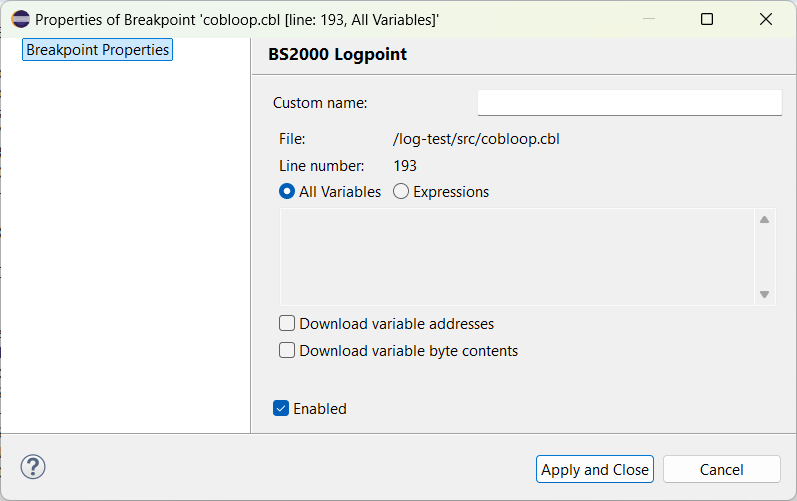
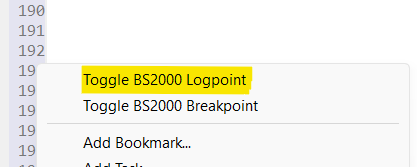
To toggle new Logpoint, perform Toggle BS2000 Logpoint form the context menu of the left marker
bar at selected line in source editor.
 That menu option opens dialog, where properties of the new Logpoint may be set:
All toggled Logpoints are visible and may be managed in the Breakpoints View
(
That menu option opens dialog, where properties of the new Logpoint may be set:
All toggled Logpoints are visible and may be managed in the Breakpoints View
( Window > Show View > Other... > Debug > Breakpoints)
BS2000 Logpoints View
Data collected by BS2000 Logpoints are visible in the  BS2000 Logpoints view (
Window > Show View > Other... > BS2000 > BS2000 Logpoints)
BS2000 Logpoints view (
Window > Show View > Other... > BS2000 > BS2000 Logpoints)
BS2000 Logpoints View will show up automatically when debugger reaches the Logpoint line.
The tree is dynamically updated during debugger session if any new data is collected.
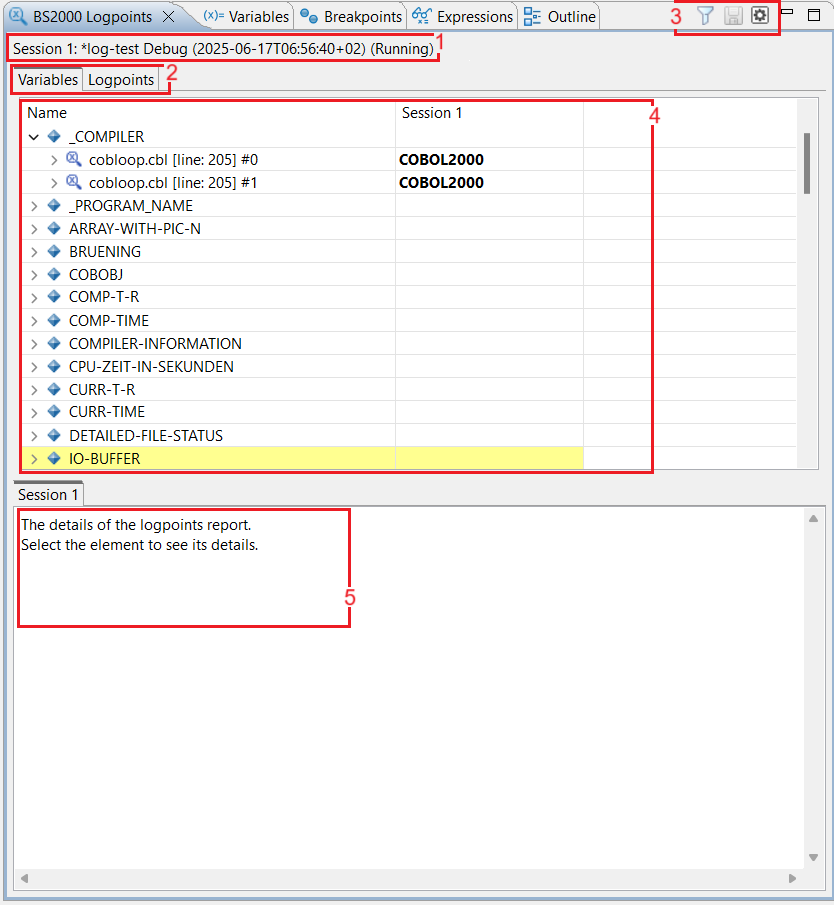
BS2000 View sections
- 1) Status Label - informs about presented Logpoint sessions (see Logpoint Sessions)
- 2) Variables / Logpoints Pages - Changes the grouping of the presented data. Values may be grouped by
variable names or by Logpoints configured in project, in the chronological order.
- 3) Toolbar Options:
Filter switch - filters variable values which have changed
Save Finished Report (Ctrl + S) - saves current report to the XML file (see Saving Logpoint Reports
Manage Logpoint Sessions - opens dialog to select presented logpoint sessions (see Logpoint Sessions)
- 4) Logpoint Data Tree - presents data collected by Logpoints, Variable names, values, and Logpoint names
which captured given variable value (number after '#' sign represents the iteration number if the Logpoint
hits several times during one debug session). You can double-click on the Logpoint tree item to quickly jump
from Variables tab to given element in the Logpoint tab.
Highlighted values (yellow background color) means that value
of the variable have changed during the debug run. (see Comparing
- 5) Details Panel - presents the details of the selected element from the tree.
Saving Logpoint Reports
If the debug sessions containing Logpoints ends or terminates, the session status changes from Running to Finished.
Each finished session will be deleted on new debug run or after closing the view.
Finished sessions may be persisted to the XML file. You can load saved sessions to the BS2000 Logpoints View using the
Manage Logpoint Sessions option from toolbar.
Logpoint Sessions
Debug runs with Logpoints or loaded Logpoint reports from XML file are treated as sessions.
To select presented session use Manage Logpoint Sessions.
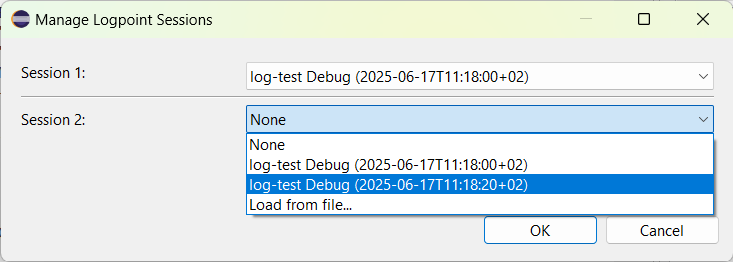 Select the runtime report or Load from file... option to assign it as Session 1 or Session 2.
To disable given session column, select None option from dropdown.
Preferences will apply after clicking OK.
Select the runtime report or Load from file... option to assign it as Session 1 or Session 2.
To disable given session column, select None option from dropdown.
Preferences will apply after clicking OK.
Currently presenting report names will be listed
at the Status Label on the top of view.
Depending on whether we use only Session 1 or both Session 1 and Session 2, filtering and highlighting values works different.
If only Session 1 is selected it highlights values which changed during the session run (different variable values in
subsequent Logpoint hits).
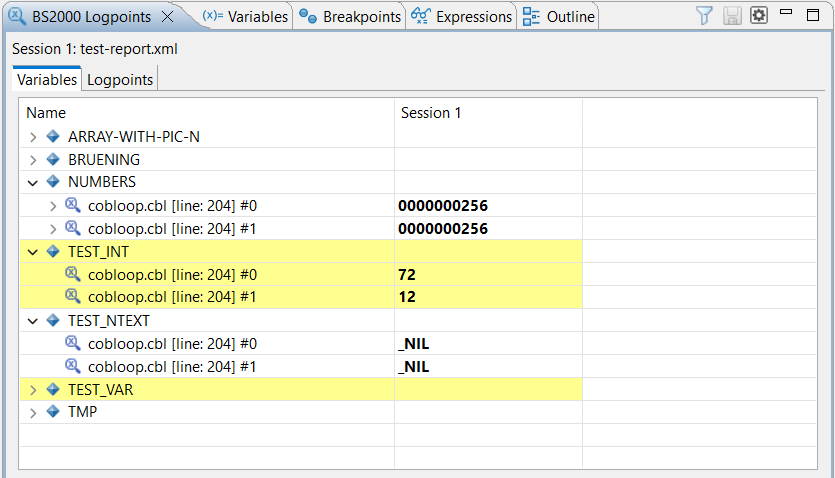 If both Session 1 and Session 2 are selected, it highlight values which are different between Session 1 and Session 2.
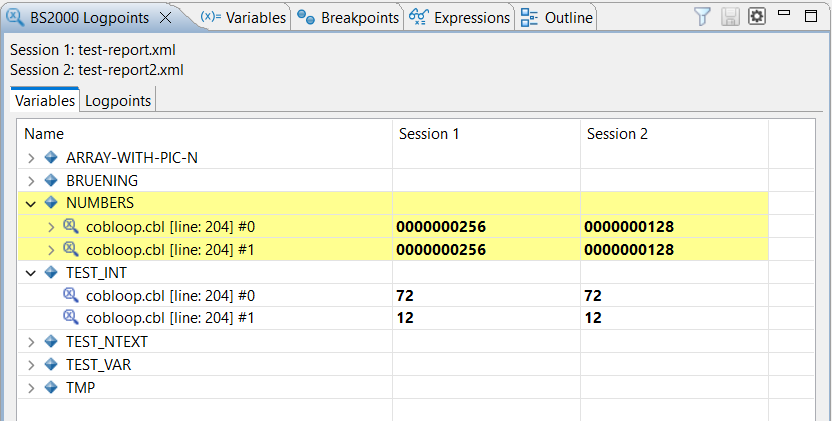 The same rules apply to filtering variable values.
Comparing
BS2000 Logpoints are useful to compare different debug runs of program to check its variable values.
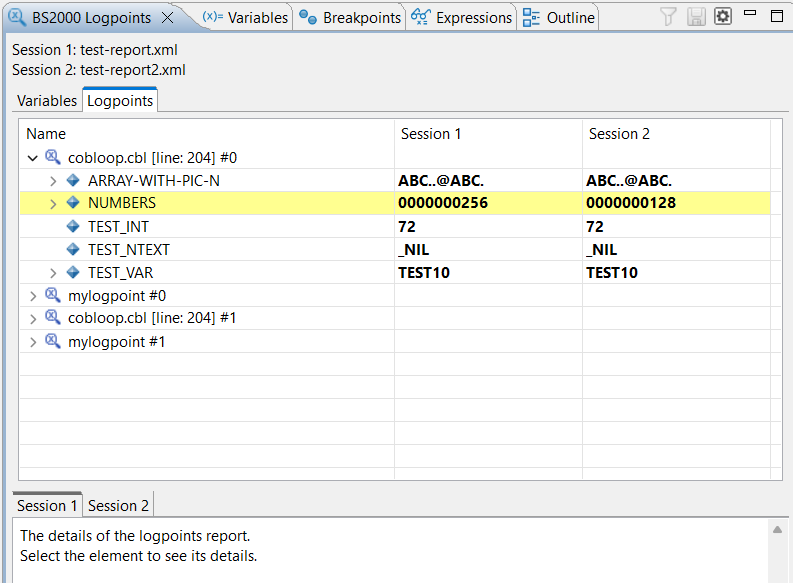
If You will generate two reports of Logpoints and load them into the BS2000 Logpoints View,
Logpoints with the same properties will be matched and displayed in the same row to compare them easily.
If You want to compare Logpoints with the future reports it is recommended to specify Logpoint custom names.
Logpoints with the same custom name will be always matched during comparison.
Additional Compare Options
There are also two context menu options which are useful in comparing Logpoints data: Compare Logpoints
and Compare Variable Values..
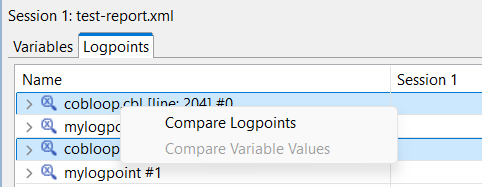
- Select two items representing Logpoints (or one when working with two sessions), right-click and select
Compare Logpoints to open compare table in the new tab.
- Select two items representing variable values (or one when working with two sessions), right-click and select
Compare Variable Values to open compare editor.
 If download variable byte contents option is enabled, download variable adressess is also enabled.